Practice Touch Typing Free
Test your technique instantly · WPM + accuracy · No sign-up
LEARN TOUCH TYPING
Touch typing is the ability to type without looking at the keyboard. It's the single most valuable keyboard skill you can learn — using all 10 fingers to type 60-100+ WPM while keeping your eyes on the screen.
By Soexya Khatiwada · Updated 2026-08-03
This free guide covers everything: home row position, finger placement, proper posture, and a step-by-step plan to build muscle memory.
No account needed — just you and your keyboard
What you'll learn
Five things, by the end of this page:
- → Which finger handles each key on a QWERTY keyboard, and why
- → The home-row position and how to find it without looking
- → How to use the interactive finger guide below to actually drill the moves
- → A 4-week practice plan that gets most people from hunt-and-peck to 40-50 WPM
- → The five mistakes that slow down almost every beginner
Skip the intro and try the interactive finger guide below if you want to see the unique thing first.
IN THIS GUIDE
WHAT IS TOUCH TYPING?
The foundation of fast, accurate keyboard use
Touch typing is a method of typing that uses muscle memory instead of sight. Rather than looking down at the keyboard to find each key (known as "hunt-and-peck"), a touch typist's fingers know exactly where every key is by feel.
The term "touch" refers to the sense of touch — you locate keys by physical position and feel, not by looking. Each of your 10 fingers is assigned a specific set of keys, and your fingers always return to a starting position called the home row after every keystroke.
The average hunt-and-peck typist manages 20-40 WPM. Touch typists routinely reach 60-80 WPM, and experienced typists hit 100+ WPM. More importantly, touch typing lets you focus on what you're writing instead of how to type it. Want to see where you stand? Try our free typing speed test.
THE HOME ROW POSITION
Your fingers' starting position for every keystroke
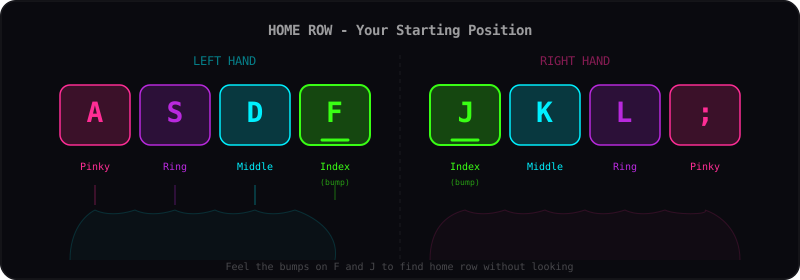
LEFT HAND
The F key has a raised bump so you can find it by touch
RIGHT HAND
The J key has a raised bump so you can find it by touch
Both thumbs rest on the spacebar. After pressing any key, your finger returns to its home row position. This is the foundation of touch typing — and why it's called the "home" row.
FINGER PLACEMENT GUIDE
Which fingers hit which keys on a QWERTY keyboard
INTERACTIVE FINGER GUIDE
Live · Press any key on your keyboard
L Pinky
L Ring
L Middle
L Index
L Thumb
R Index
R Middle
R Ring
R Pinky
Home row keys are marked with •. Both thumbs share the spacebar.
How to actually use it
Three quick exercises with the live guide above. Each one is the actual practice that builds touch-typing muscle memory — not just trivia.
- 1.Press the home-row keys one at a time — A, S, D, F with your left hand, then J, K, L, ; with your right. Let your fingers find them by feel. The guide highlights which finger should press each one.
- 2.Try a common bigram — type T-H, then H-E, then I-N. Watch which fingers move. Most English text is built from a small set of letter pairs, so learning these fluently is most of the gain.
- 3.Cover your keyboard with a cloth and type “the quick brown fox.” Look only at the screen. If you mess up, slow down until you don't. This is the actual touch-typing test — not the WPM number, the no-looking part.
The 4-week plan below walks you through what to drill each week.
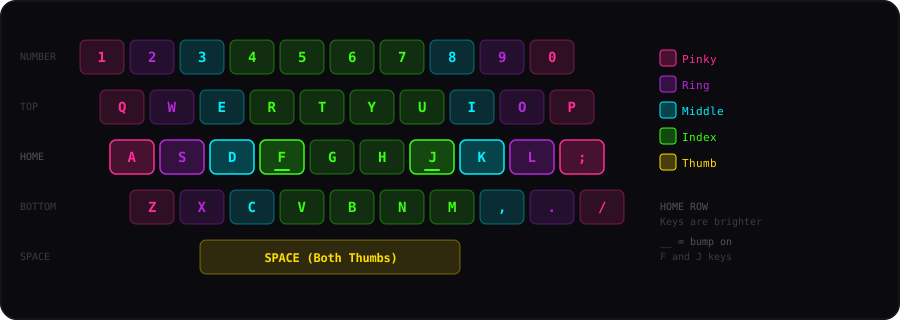
Left Pinky
Keys: Q, A, Z, 1, !, Tab, Caps, Shift
Left Ring
Keys: W, S, X, 2, @
Left Middle
Keys: E, D, C, 3, #
Left Index
Keys: R, T, F, G, V, B, 4, 5, $, %
Right Index
Keys: Y, U, H, J, N, M, 6, 7, ^, &
Right Middle
Keys: I, K, comma, 8, *
Right Ring
Keys: O, L, period, 9, (
Right Pinky
Keys: P, ;, /, 0, -, =, [, ], ', Enter, Shift
Notice that the index fingers cover the most keys (two columns each), while the pinkies handle the outer edges. This is because your index fingers are the strongest and most dexterous. Practice the finger zones with our typing practice tool.
HOW TOUCH TYPING WORKS
The 4-step cycle that happens for every single keystroke
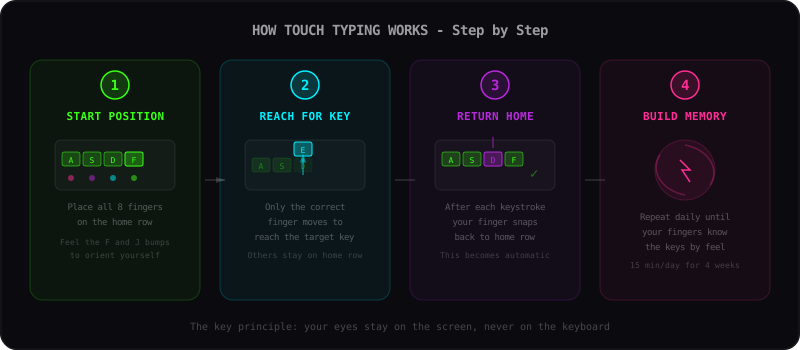
WHY THIS WORKS
Your brain is incredibly good at learning repetitive physical motions. The same way you don't think about where the brake pedal is when driving, your fingers will eventually "just know" where each key is. This is called procedural memory.
THE KEY INSIGHT
Touch typing is slower at first — that's normal. You're retraining your brain to use a new system. But once muscle memory takes over (usually 2-4 weeks), you'll blow past your old speed and never look back. Track your progress with our WPM test.
PROPER TYPING POSTURE
Good posture prevents pain and helps you type faster
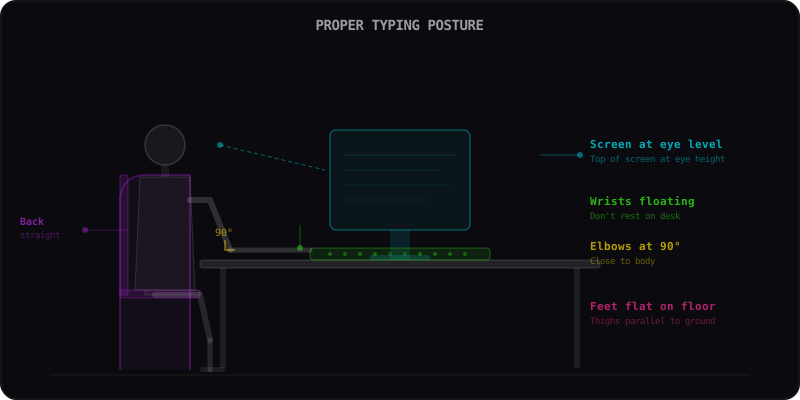
Back Straight
Sit upright with your back supported by your chair. Avoid slouching or leaning forward toward the screen.
Elbows at 90°
Keep your elbows close to your body at approximately a 90-degree angle. Forearms should be roughly parallel to the floor.
Wrists Floating
Your wrists should hover above the keyboard, not rest on the desk. Resting creates strain and limits finger movement.
Screen at Eye Level
The top of your monitor should be at or slightly below eye level. This prevents neck strain from looking up or down.
Feet Flat on Floor
Keep both feet flat on the floor with thighs parallel to the ground. Use a footrest if your chair is too high.
Relaxed Shoulders
Drop your shoulders — don't hunch them up. Tension in your shoulders travels down to your arms and affects typing speed.
WHY TOUCH TYPING WINS
Touch typing vs hunt-and-peck: there's no contest
2-3x Faster Typing
Touch typists consistently reach 50-100+ WPM, while hunt-and-peck typists plateau around 30-40 WPM. The speed difference compounds over every email, document, and message you type.
Eyes on Screen
When you don't need to look at the keyboard, you can focus on what you're writing. This improves the quality of your work and reduces the mental overhead of typing.
Fewer Errors
Touch typing builds consistent finger paths to each key. Once trained, your fingers hit the right key automatically, producing fewer typos than the visual guesswork of hunt-and-peck.
Less Physical Strain
Proper touch typing technique distributes work across all 10 fingers and keeps your wrists in a neutral position. This reduces the risk of repetitive strain injuries from uneven finger use.
Transferable Skill
Touch typing is a skill you use every single day for the rest of your life. The weeks you invest in learning it pay dividends across every job, hobby, and conversation that involves a keyboard.
Better for Coding
Programmers who touch type can focus on logic instead of hunting for symbols like {, }, and ;. Touch typing is especially valuable for writing code, where every character counts.
TOUCH TYPING vs HUNT-AND-PECK
| Touch Typing | Hunt & Peck | |
|---|---|---|
| Average Speed | 60-100+ WPM | 20-40 WPM |
| Fingers Used | All 10 | 2-6 |
| Eyes On | Screen | Keyboard |
| Error Rate | Low | High |
| Physical Strain | Minimal | Moderate-High |
Check your current speed with our typing speed test or see average typing speed by age
COMMON MISTAKES TO AVOID
Most beginners make these errors — here's how to fix them
Looking at the keyboard
Cover the keyboard with a cloth or use blank keycaps. Force your fingers to memorize positions.
Skipping the home row return
After every keystroke, consciously bring your finger back to its home row position. This becomes automatic with practice.
Using the wrong fingers
Slow down and use the correct finger for each key, even if it feels slower at first. Speed comes from consistency.
Resting wrists on the desk
Keep wrists elevated and floating. Resting them creates awkward angles and increases strain over time.
Practicing too fast too soon
Prioritize accuracy over speed. Typing the wrong key fast is worse than typing the right key slowly. Speed follows accuracy.
Inconsistent practice
15 minutes every day beats 2 hours once a week. Touch typing is a muscle memory skill — daily repetition is essential.
PRACTICE PLAN
From beginner to proficient in 4-6 weeks
Home Row Only
Practice typing with just the home row keys (ASDF JKL;). Focus on correct finger placement and always returning to home position. Aim for accuracy over speed. 15-20 minutes daily.
Add Top Row
Introduce the QWERTY row. Practice reaching up from home row and returning. Work on common letter combinations. Continue daily sessions.
Add Bottom Row
Bring in ZXCVB and the right-side bottom row. You now have all 26 letters. Practice typing real words and short sentences.
Build Speed & Accuracy
Type longer passages and real text. Add numbers and punctuation. Track your WPM and accuracy. Challenge yourself with typing games on Kwerty's Rush and Survival modes.
Ready to start? Jump into Kwerty's typing arena for free practice with real-time WPM tracking. Try typing games to make practice fun, or read our tips to type faster.
TIME TO TEST YOUR TECHNIQUE
Use proper finger placement and type the phrase below
Click here and type the words to check your speed
TOUCH TYPING FAQ
Common questions about learning touch typing
What is touch typing?
Touch typing is the ability to type without looking at the keyboard. Instead of hunting for each key with your eyes, your fingers learn their positions through muscle memory. Each finger is assigned specific keys, and you always return to the home row (ASDF for the left hand, JKL; for the right hand) between keystrokes.
How long does it take to learn touch typing?
Most people can learn the basics of touch typing in 1-2 weeks with daily practice. Reaching a comfortable speed (40-50 WPM) typically takes 4-6 weeks. To match or exceed your previous hunt-and-peck speed usually takes 2-3 months of consistent practice. The investment pays off permanently.
What is the home row in touch typing?
The home row is the middle row of letter keys on a QWERTY keyboard: A S D F G H J K L ;. Your fingers rest on ASDF (left hand) and JKL; (right hand) when not actively typing. The small raised bumps on the F and J keys help you find the home row by touch alone. All other keys are reached from this starting position.
Is touch typing faster than hunt-and-peck?
Yes, significantly. Hunt-and-peck typists average 20-40 WPM because they use only 2-4 fingers and must look down at the keyboard. Touch typists average 50-80 WPM and can reach 100+ WPM because all 10 fingers work simultaneously and eyes stay on the screen. Touch typing also produces fewer errors and less physical strain.
Can I learn touch typing for free?
Absolutely. Kwerty is a completely free typing practice tool — no sign-up, no paywall. You can practice touch typing with unlimited sessions, multiple word packs, and real-time WPM and accuracy tracking. It's the perfect environment to build your touch typing skills from scratch.
What is the correct posture for touch typing?
Sit with your back straight and supported by your chair. Keep your elbows at about 90 degrees, close to your body. Your wrists should float above the keyboard — never rest them on the desk or a wrist rest while actively typing. The screen should be at eye level, and your feet should be flat on the floor with thighs parallel to the ground.
What are the home row keys?
The home row keys are A, S, D, F for the left hand and J, K, L, ; (semicolon) for the right hand. Both thumbs rest on the spacebar. The F and J keys have small raised bumps (tactile markers) that help you position your fingers correctly without looking at the keyboard.
How can I improve my touch typing speed?
Focus on accuracy first — speed follows naturally. Practice daily for 15-20 minutes using a typing test tool like Kwerty. Work on problem keys individually. Type real text (not just random words). Keep your eyes on the screen, never the keyboard. Track your WPM over time and celebrate small improvements.
RELATED GUIDES
How to Type Faster
Advanced tips and techniques to increase your typing speed beyond the basics.
Typing Speed Chart & Percentiles
See how your speed compares to the average — benchmarks by age plus a live percentile calculator.
Practice Arena
Put the technique to work — live WPM and accuracy tracking, free, no sign-up.
Free Typing Test
Test your current typing speed and accuracy with our free online typing test.
Best Keyboards for Typing
Consistent switches make touch typing easier to learn — the boards typists actually recommend.
Membrane vs Mechanical
What is actually under your keys, and whether upgrading helps your technique.
Daily Challenge
Same words for everyone, one attempt per day. Build a streak that keeps practice honest.
Keyboard Shortcuts
Essential keyboard shortcuts that complement your touch typing skills.
GEAR THAT HELPS
Proper equipment reduces fatigue and helps build touch typing muscle memory faster.
Keychron K2
Tactile mechanical switches give clear feedback when a key registers — essential for learning proper keystroke timing without looking.
View on Amazon →Logitech MX Keys
Low-profile keys designed for all-day typing comfort. Great for building the relaxed, fluid technique that touch typing requires.
View on Amazon →Keyboard Wrist Rest
Keeps your wrists at the correct neutral angle during long practice sessions. Reduces strain and helps maintain proper touch typing posture.
View on Amazon →Read our full Keychron K2 review — what it's like to learn touch typing on it.
As an Amazon Associate we earn from qualifying purchases.
START TOUCH TYPING TODAY
You now know home row position, proper finger placement, and the techniques that separate fast typists from everyone else. Put it all into practice on Kwerty — no sign-up, no paywall, just you and your keyboard.