🎓

Touch Typing · Home-Row Optimized

Best Keyboards for Touch Typists — 2026 Home-Row-Optimized Picks

Five keyboards ranked for the muscle-memory typing crowd — consistent tactile feedback, strong F/J home-row bumps, layouts that keep fingers where they belong, and switches that don't fatigue over long sessions. Picks come from touch-typist community consensus and long-term owner feedback, not sponsored placements.

By Soexya Khatiwada · Updated 2026-08-03

Contains affiliate links — as an Amazon Associate, Kwerty earns from qualifying purchases at no cost to you. Full disclosure

Short answer

If you touch type (or want to), the keyboard to buy is the Keychron K2 (V2) the touch typist's default at ~$80. Strong F/J bumps you can find in half a second, Gateron switches with consistent tactile feel across every key, 75% layout with function row + arrows retained, and multi-device wireless pairing so you can touch type across laptop, iPad, and phone from one board.

Live · Now

Today's Amazon Picks

Prices and stock update continuously on Amazon. Tap any product below to jump straight to today's live Amazon page.

SEE ALL PICKS
Verified Amazon links In-stock checked Prime-eligible picks

As an Amazon Associate we earn from qualifying purchases.

Buying criteria

What makes a keyboard good for touch typists

Consistent tactile feedback — every key feels the same

Touch typing relies on muscle memory. If some keys feel different from others (uneven switch feel, wobbly stabilizers, mushy longer keys), your fingers lose the trust that lets them type without looking. Every keyboard on this list has consistent switch actuation across the whole board — not just under the number row.

Home row F/J bumps you can actually feel

The little raised bumps on F and J are how touch typists find home position without looking. Cheap keyboards use tiny, barely-there bumps. The picks on this list have real tactile home-row anchors that let you re-orient your hands in under a second, mid-flow.

Layouts that keep fingers where they belong

60% layouts are too aggressive for most touch typists — you lose function keys and arrows, which forces awkward layer-shift movements that break flow. 75% and TKL keep everything a touch typist actually uses within reach. Full-size adds a numpad most touch typists rarely engage.

Comfortable for long typing sessions (no fatigue)

Touch typists type continuously — you're not stopping to look at the keys. That means light-actuation switches (Red, Brown, or dampened linears), palm rests, or low-profile designs that reduce wrist strain. High-actuation-force switches (like some Blues) cause fatigue after 30 minutes of continuous typing.

Size guide

Which layout size fits your desk?

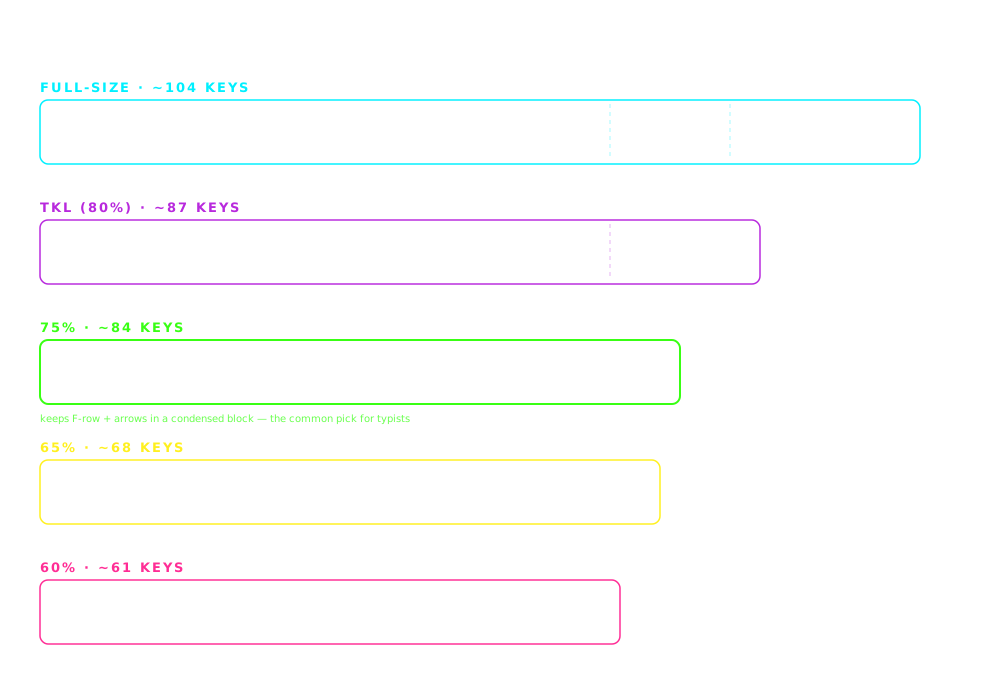
Keyboard form factors compared to scale: full-size (~44 cm, ~104 keys), TKL (~36 cm, ~87 keys), 75% (~32 cm, ~84 keys), 65% (~31 cm, ~68 keys) and 60% (~29 cm, ~61 keys)
Widths drawn to scale. The layout column in the comparison table below uses these size names.

The picks

The 5 best keyboards for touch typists

#1

Aula F75

~$40🏆 BEST BUDGET FOR TOUCH TYPISTS

The best sub-$50 board for touch typing, period. Gasket-mounted for consistent softer feel across all keys, pre-lubed linear switches so nothing feels sticky, and a 75% layout that keeps every key a touch typist needs. If you're touch typing on a tight budget, this is the answer.

Pros

  • +Gasket-mounted — softer, more consistent feel across all keys
  • +Pre-lubed linear switches — smooth home-row anchor
  • +75% layout — full function row + arrows + compact footprint
  • +Hot-swap sockets for switch upgrades later

Cons

  • Wired only
  • Aula brand less well-known but build quality is real

Best for: Budget-conscious touch typists, students, first mechanical for someone already typing 60+ WPM
#2

Keychron K2 (V2)

~$80⭐ BEST ALL-ROUND TOUCH TYPING PICK

The keyboard that shows up over and over in touch typist recommendations — because it just works. 75% layout with strong F/J bumps, wireless (Bluetooth pairs to 3 devices), Gateron switches with consistent tactile feel across the board. If we could recommend only ONE keyboard for touch typists, this is it.

Pros

  • +Wireless (Bluetooth) + wired USB-C
  • +Multi-device pairing (3 devices) — laptop, iPad, phone
  • +Gateron switches — consistent tactile feedback
  • +75% layout — best layout for touch typing productivity
  • +Mac + PC keycaps included

Cons

  • Higher price than budget picks
  • Bluetooth occasionally requires re-pairing after long idle

Best for: Serious touch typists at 60-100+ WPM, professionals who type all day, cross-device workers

#3

Keychron K6

~$70🎯 BEST 65% FOR MINIMALIST TOUCH TYPISTS

65% layout for touch typists who want a smaller footprint but refuse to give up arrows. Same Gateron switch quality as the K2, tighter home-row-to-arrow travel distance, ideal for tight desks or backpack transport. Skip if you frequently use function keys (they're on a layer).

Pros

  • +65% layout — 30% smaller footprint than 75%
  • +Wireless + wired
  • +Gateron hot-swap switches — same quality as K2
  • +Multi-device pairing

Cons

  • Function keys live on a layer (Fn + number row)
  • Takes 1-2 days to adjust from 75% layout

Best for: Touch typists on small desks, laptop-first workers, those who rarely need function keys

#4

NuPhy Air75 V2

~$110💎 BEST LOW-PROFILE MECHANICAL

For touch typists who love the MacBook-style low-profile feel but still want real mechanical switches. NuPhy's Gateron low-profile switches deliver tactile feedback at half the key travel distance — dramatically less finger fatigue over long sessions. If you're switching between a laptop keyboard and an external one, this bridges both feels.

Pros

  • +Low-profile mechanical switches — best of both worlds
  • +Half the key travel = less finger fatigue on 8-hour sessions
  • +Wireless (Bluetooth) + 2.4GHz + wired
  • +75% layout with arrows and function row

Cons

  • Premium price ($110)
  • Low-profile keycaps limit aftermarket customization

Best for: MacBook power users, low-profile lovers who miss mechanical feel, long-session touch typists

#5

Logitech MX Keys

~$110🍎 BEST NON-MECHANICAL TOUCH TYPING

If mechanical switches aren't your thing but you want a premium touch typing experience, this is it. Scissor-switch keys deliver very consistent tactile feedback (a big touch typing requirement) with virtually zero noise. Extremely popular with professional writers and touch typists who work in shared offices. Charges via USB-C, lasts weeks on a charge.

Pros

  • +Silent scissor switches — office/library appropriate
  • +Perfect touch typing feel — consistent, predictable
  • +3-device Bluetooth pairing (Flow support with mice)
  • +Backlit with proximity detection

Cons

  • Not mechanical (some prefer the feel)
  • Non-standard bottom row limits keycap swaps

Best for: Office workers needing silent typing, MacBook-style keyboard preferences, touch typists who dislike mechanical clack

Compare

Side-by-side comparison

KeyboardPriceWireless
Aula F75~$40No
Keychron K2 (V2)~$80Yes
Keychron K6~$70Yes
NuPhy Air75 V2~$110Yes
Logitech MX Keys~$110Yes

Switch guide

Linear vs tactile vs clicky — 10-second version

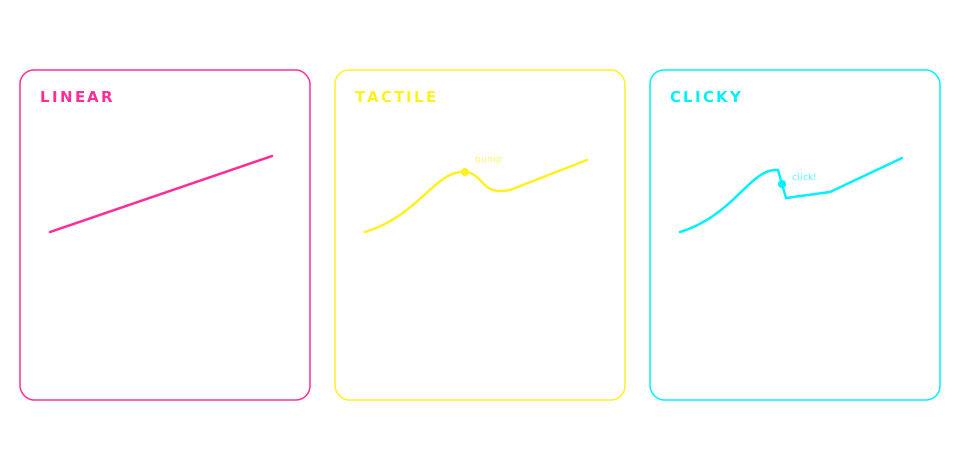
Mechanical switch types compared: linear switches feel smooth and are the quietest, tactile switches add a feelable bump and are the most popular for typing, clicky switches add an audible click and are the loudest
Generalized by switch family — individual switches vary. When a pick above lists Brown switches, that's the tactile column.

Frequently asked

Common questions

What is the best keyboard for touch typing in 2026?+
The best all-round keyboard for touch typing in 2026 is the Keychron K2 (V2) at ~$80. It has a 75% layout that keeps every key a touch typist uses (function row + arrows), Gateron switches with consistent tactile feedback across the entire board, strong F/J home-row bumps, and multi-device wireless pairing. For budget-conscious touch typists under $50, the Aula F75 is the best pick. For low-profile fans, the NuPhy Air75 V2 combines mechanical feel with laptop-style travel.
Do touch typists need a mechanical keyboard?+
Not necessarily. The most important thing for touch typing is CONSISTENT tactile feedback — you need to know every key feels the same so your muscle memory can trust the board. Mechanical keyboards deliver this well (especially quality ones like Keychron or NuPhy), but premium scissor-switch keyboards like the Logitech MX Keys also work brilliantly for touch typing and are quieter for office use. What you should avoid: cheap membrane keyboards with mushy, inconsistent key feel — those actively hurt touch typing accuracy.
What keyboard layout is best for touch typists?+
75% is the sweet spot for most touch typists. It keeps the function row and arrow cluster (both used more than touch typists realize — function keys for browser shortcuts, arrows for code navigation and text editing) while dropping the numpad you rarely use. TKL is fine too but takes more desk space. 65% works if you can tolerate function keys on a layer. Avoid 60% for touch typing — losing dedicated arrows breaks the muscle-memory flow that touch typing depends on. Full-size is fine but the numpad adds bulk without benefit for most typists.
What switches are best for touch typing?+
For touch typing, you want light-actuation switches that give clear tactile feedback without causing finger fatigue over long sessions. Best options: Gateron Brown (tactile bump, moderate volume — the standard touch typing switch), Gateron Red (linear, quiet, low-fatigue), or NuPhy's Gateron Low-Profile (half the travel = less fatigue on 8-hour sessions). AVOID for touch typing: Cherry MX Blue or Kailh Box Jade — clicky switches with heavy actuation cause hand fatigue after 30-45 min of continuous typing.
How is a touch typing keyboard different from a gaming keyboard?+
Touch typing keyboards prioritize CONSISTENCY, low fatigue, and predictable feel across every key. Gaming keyboards often prioritize fast actuation, RGB, and macro programmability — features that don't help touch typing and can actually hurt it (some gaming switches actuate too quickly and cause typos). A touch typist can use a gaming keyboard, but they'll notice premium touch-typing-focused boards (Keychron K2, Logitech MX Keys) feel more accurate for sustained typing.
Do wireless keyboards work well for touch typing?+
Yes — modern wireless mechanical keyboards (Keychron K2, K6, NuPhy Air75) have essentially zero latency for typing purposes and are perfectly fine for touch typists. The main caveat is battery: heavy typists should plug in via USB-C occasionally rather than run purely on Bluetooth. Multi-device pairing (K2, K6, MX Keys all support 3 devices) is a genuine productivity win for touch typists who switch between laptop, desktop, tablet.
Can I use one keyboard for touch typing on both Mac and PC?+
Yes. Every keyboard on this list works on both Mac and PC. The Keychron K2 includes both Windows and Mac keycap sets so you can swap Command/Option labels. The Logitech MX Keys has a dedicated Mac layout variant (MX Keys for Mac) or you can remap in System Preferences. NuPhy Air75 detects platform automatically and swaps modifier behavior. Cross-platform touch typing is a solved problem — buy any of these and you're covered.
Which keyboard has the best F/J home-row bumps for touch typing?+
Keychron K2 and K6 have the strongest, most-tactile F/J bumps — you can find them in under half a second without looking. Aula F75 has good bumps too but they're slightly smaller. Logitech MX Keys has subtle scallop indicators rather than raised bumps — some touch typists prefer this, others find it too subtle. NuPhy Air75 has small bumps due to the low-profile keycap depth. For pure home-row-anchor feel, Keychron K2 wins.

Disclosure

As an Amazon Associate we earn from qualifying purchases. Picks on this page are research-based: chosen from published specs, long-term owner feedback, and what the mechanical keyboard community consistently recommends for touch typists — we have not hands-on tested every board listed. Prices update in real time on Amazon and may differ from any examples shown. Last updated 2026-08-03.